
How to stream without showing your face
Five ways to go live on Twitch or YouTube without your real face on camera, what each one costs you in setup and expression, and how to set up the one that still looks like a person.
Plenty of people want to stream and plenty of them don't want their face on the internet. Maybe you want to keep your streaming life separate from work or family, maybe you've seen what happens to streamers who get recognised, or maybe you just don't like being on camera. All fair reasons.
The problem is that a face cam is a big part of why live content works. Viewers stay for your reactions: the laugh, the wince, the double take. So the real question isn't how to hide your face but what to show instead. Here are the five options people use, and what each one costs you.
- No cameraGameplay or screen, plus your voice
- Shows your expressions
- Looks like a person
- Easy to set up
- Easy on your computer
Viewers lose your reactions, which is much of why people watch live.
- Partial framingHands cam, a mask, or the camera below your face
- Shows your expressions
- Looks like a person
- Easy to set up
- Easy on your computer
Easy to slip. One wrong angle and your face is on stream.
- Blur or cropA blur filter or crop in OBS
- Shows your expressions
- Looks like a person
- Easy to set up
- Easy on your computer
A blob or a cropped face looks like hiding, not like a choice.
- VTuber avatar2D or 3D character driven by face tracking
- Shows your expressions
- Looks like a person
- Easy to set up
- Easy on your computer
A model, rigging and tracking software, and a cartoon look by design.
- AI personaA different human face, in real time
- Shows your expressions
- Looks like a person
- Easy to set up
- Easy on your computer
Needs a steady connection and adds a short video delay.
| Option | Shows your expressions | Looks like a person | Easy to set up | Easy on your computer | The catch |
|---|---|---|---|---|---|
No camera Gameplay or screen, plus your voice | Viewers lose your reactions, which is much of why people watch live. | ||||
Partial framing Hands cam, a mask, or the camera below your face | Easy to slip. One wrong angle and your face is on stream. | ||||
Blur or crop A blur filter or crop in OBS | A blob or a cropped face looks like hiding, not like a choice. | ||||
VTuber avatar 2D or 3D character driven by face tracking | A model, rigging and tracking software, and a cartoon look by design. | ||||
AI persona A different human face, in real time | Needs a steady connection and adds a short video delay. |
1. No camera at all
The simplest choice: stream your game or screen and talk over it. It costs nothing and can't go wrong. It works best when the content carries the stream on its own, like speedruns, tutorials, art or high-skill gameplay.
The trade-off is connection. Without a face, viewers have only your voice to read you by, and new viewers browsing a directory of face cams are more likely to scroll past.
2. Partial framing
A hands cam for drawing or cooking, a mask or helmet, or a camera pointed at your chest so your face stays out of shot. These keep a real human on screen and some creators build a whole identity around them.
The risk is human error. Lean forward, stand up, or bump the camera, and the one frame that shows your face can be clipped and kept forever.
3. Blur or crop in OBS
OBS can blur or crop part of your camera, and plugins can follow your face with a blur. It's free and uses software you already have. It also tends to look like you're hiding something, and a tracker that loses your face for a second shows it to everyone.
4. A VTuber avatar
An animated character that copies your expressions through face tracking. When it's done well, it's the most expressive of the traditional options, and it comes with a ready-made community and style.
It's also the most work. You need a model (from free templates up to commissioned art and rigging), tracking software, time to tune it, and a computer that can track and render while it runs your game and your stream. And it's a character, not a person. That's exactly what some audiences want and exactly what others don't.
5. An AI persona
This is the newest option: your camera stays on, but a different human face is rendered over yours in real time. Your expressions, head turns and lip movement come through, so viewers get the reactions they came for, from a face that isn't yours.
With Livesync the rendering happens on a cloud GPU, so your computer only sends and receives video and you don't need a powerful graphics card. The trade-offs: you need a steady internet connection, and the video arrives a fraction of a second behind your voice. In our own tests the whole round trip was about a third of a second, most of it network distance (see how we measured it).
Setting up an AI persona for your stream
With Livesync Desktop, your persona shows up on your computer as a normal webcam called Livesync Camera, so OBS and other streaming apps can use it like any other camera.
- 01Your webcamLivesync Desktop reads your real camera.
- 02 · Cloud GPUFace renderingYour persona is applied to every frame on a GPU.
- 03Livesync CameraThe result appears as a webcam on your computer.
- 04OBSAdd it as a Video Capture Device, like any camera.
- 05Twitch or YouTubeStream as usual. Viewers see the persona.
- Install Livesync Desktop for Mac or Windows and sign in.
- Create a persona. Upload a clear, well-lit, front-on photo of the face you want to use. More on choosing one below.
- Start a session and pick your persona. It takes a few seconds to settle in. Check the preview before you go live.
- In OBS, add a Video Capture Device source and choose Livesync Camera. Put it in your scene where your face cam would go.
- Delay your microphone to match. Because the video arrives slightly after your voice, add a small sync offset to your mic in OBS so your lips and words line up. Our OBS guide walks through it.
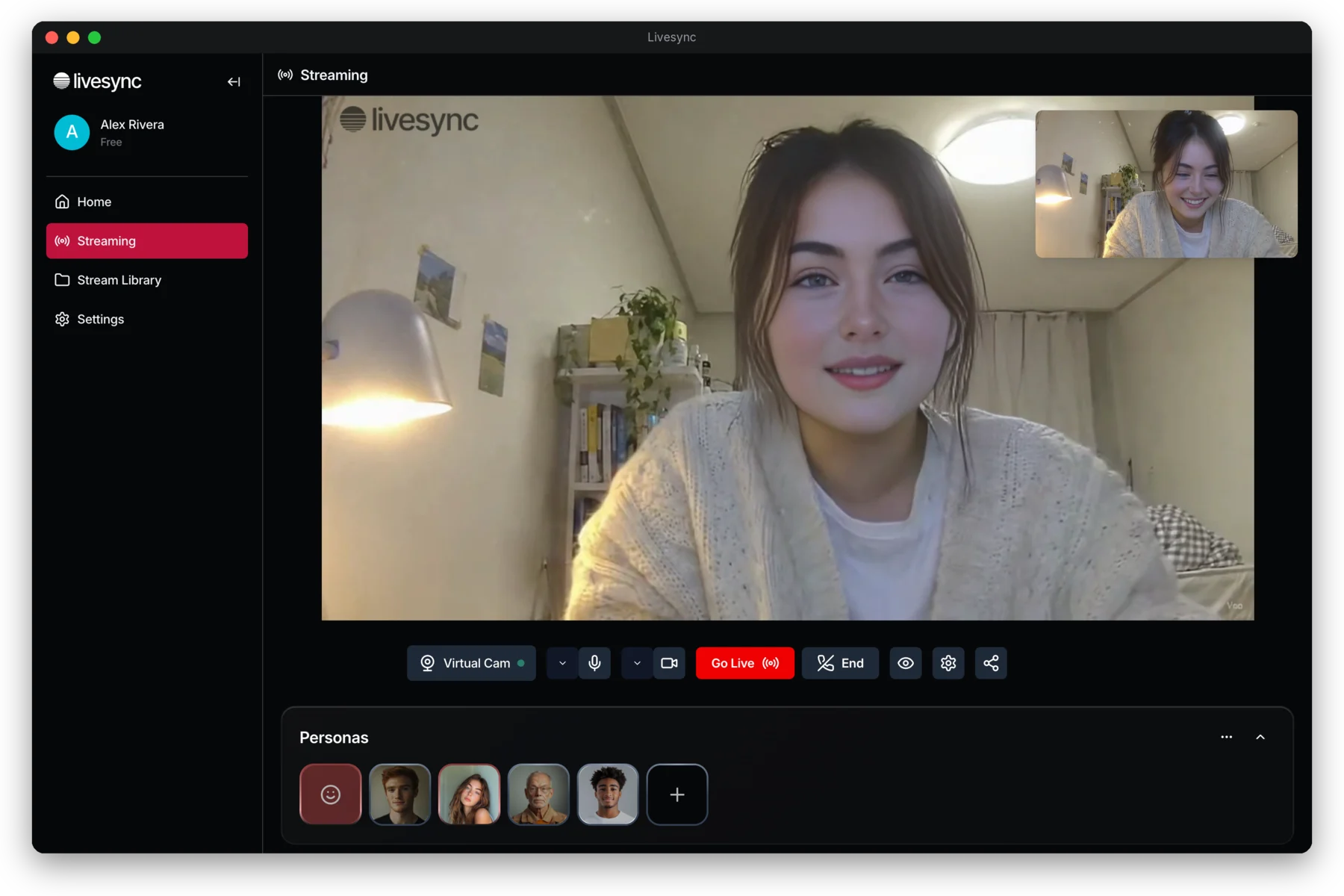
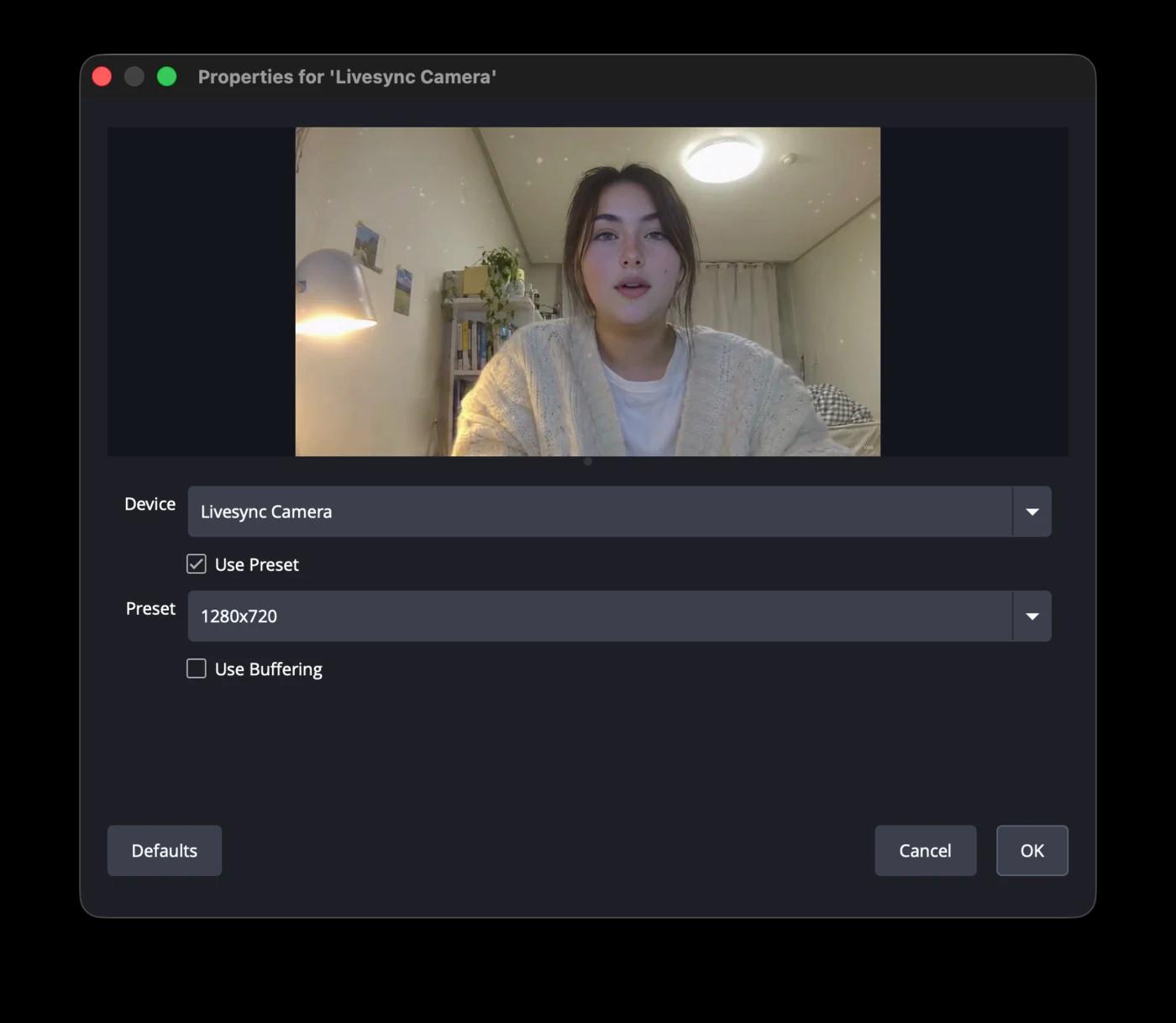
Prefer to stream straight from the browser? Livesync can also send your stream directly to Twitch or YouTube without OBS.
Choosing a persona face
Your persona becomes your on-stream identity, so pick it the way you would pick a channel name: something you can keep.
- Use a face you have the right to use. An AI-generated face is the safest choice, because it isn't anybody. Never use a real person's face without their permission. That includes celebrities and other streamers.
- Match the basics. A persona with a similar face shape and hairline to yours blends more naturally at the edges, especially when you turn your head.
- Light your real face well. The persona follows what your camera sees. Soft, even light from the front gives the cleanest result, just like a regular face cam.
Be upfront with your audience
A persona works best as a known part of your channel, like a VTuber character, not as a secret. Saying so in your channel description or stream title costs you nothing and builds trust. Some platforms also require it: YouTube, for example, asks creators to disclose realistic altered or synthetic content. Check the rules of the platform you stream on.
Common questions
Can viewers tell it's not my face?
Most of the time the persona holds up in a normal face cam frame. Fast movements, hands crossing your face, or turning fully sideways are where any face swap is most likely to show its edges, so keep your camera at a normal distance and angle.
Do I need a gaming PC or a good graphics card?
No. The face rendering runs on our GPUs, not yours. Your computer needs to run Livesync Desktop, your camera and your stream, and a stable upload connection matters more than a powerful graphics card.
Does it work in Zoom or Discord too?
Yes. Livesync Camera appears in any app that lets you choose a camera, including Zoom, Google Meet, Teams and Discord. See the Livesync Desktop guide.
Can I try it before I pay?
Yes, new accounts start on the Free plan with a few credits to try personas in a private session. Streaming to Twitch or YouTube is on paid plans; see pricing.
Try an AI persona on your next stream
Version 1.0.2 for macOS 13+ and Windows 10/11 · Setup guide