
Introducing Livesync Desktop
Your persona as a webcam in Zoom, Google Meet and OBS. For Mac and Windows.
Livesync Desktop is out for Mac and Windows. It gives your persona its own webcam. Install the app, start a session, and you'll find Livesync Camera in the camera list of Zoom, Google Meet, OBS and every other app that uses a camera. Pick it, and the person on the other end sees your persona.
If you've used Livesync in a call before, you know it used to take OBS, a browser source, a virtual camera and usually a virtual audio driver. None of that is needed anymore.
Get Livesync Desktop
Version 1.0.2 for macOS 13+ and Windows 10/11 · Setup guide
Zoom
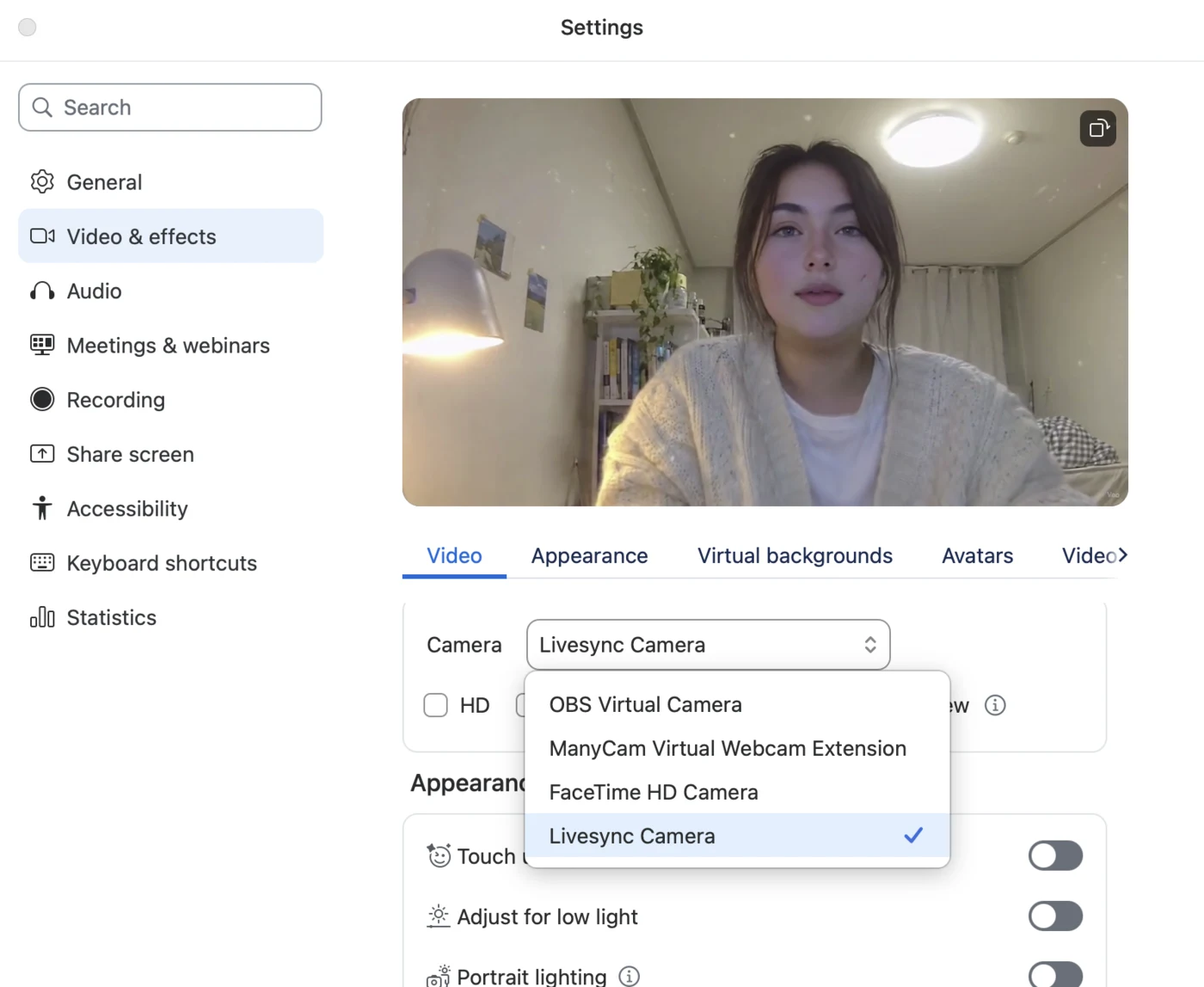
Open Zoom's settings, go to Video & effects and choose Livesync Camera. Your persona shows up in the preview right away, and every meeting you join uses it from then on.
Google Meet
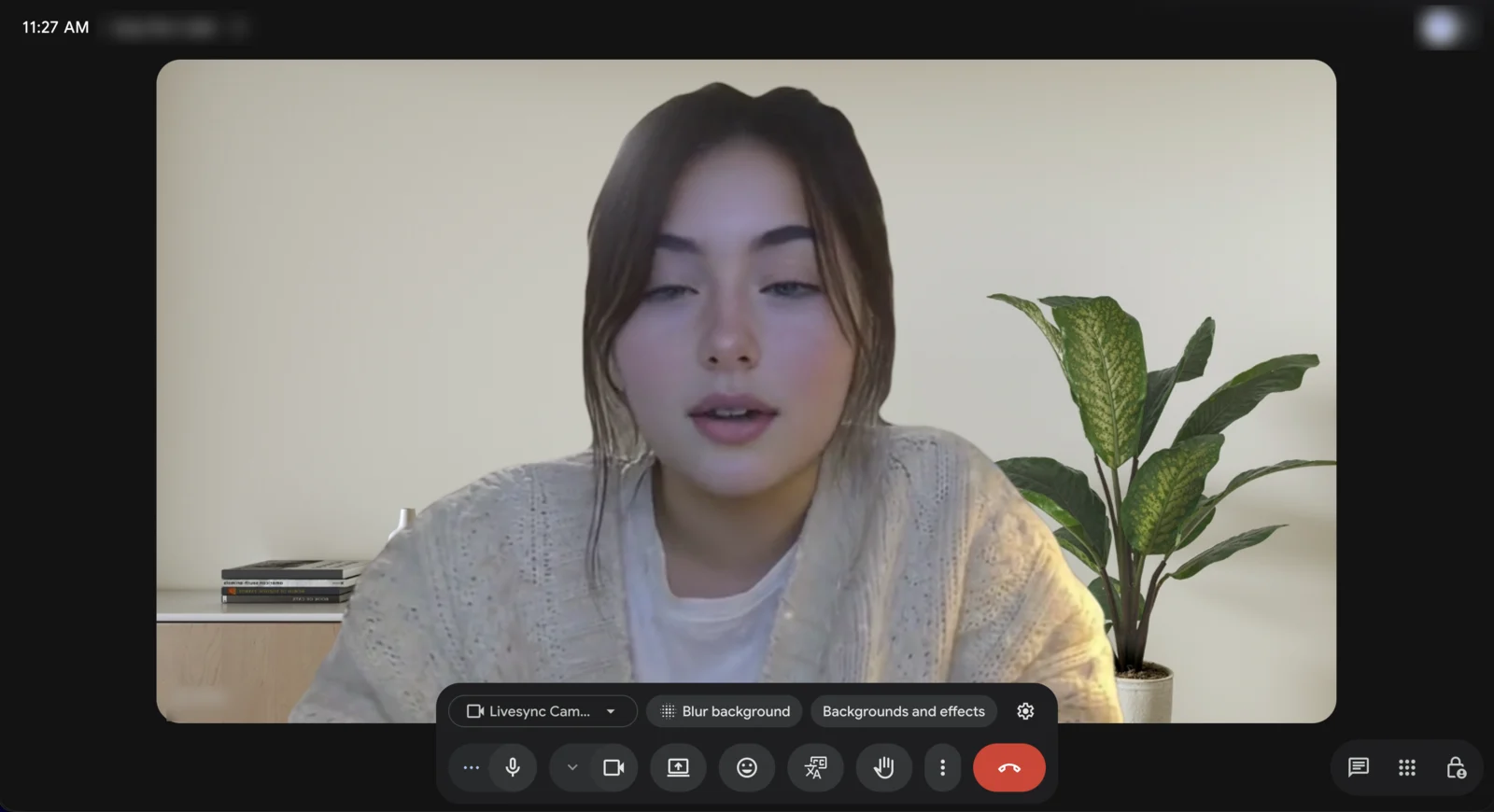
In a meeting or on the screen before you join, click the camera button's menu and choose Livesync Camera. Meet's own background effects still work on top, as they would with any webcam.
OBS
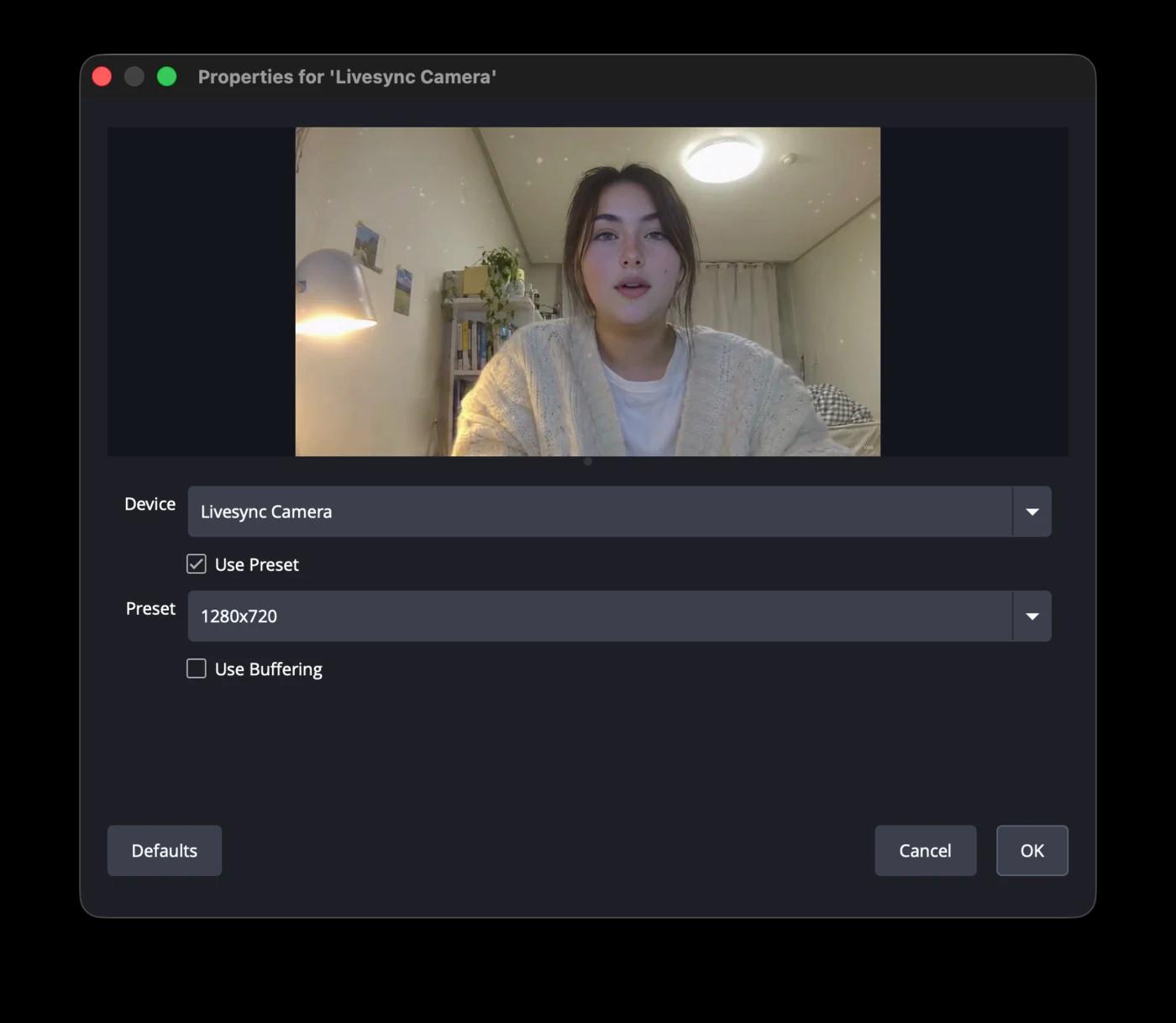
Add a Video Capture Device source and set its device to Livesync Camera. That's the whole setup: from there you can stream, record or use OBS's own virtual camera as usual.
The same goes for Microsoft Teams, Discord, Slack, FaceTime and any other app that lets you choose a camera.
Know what your camera is showing
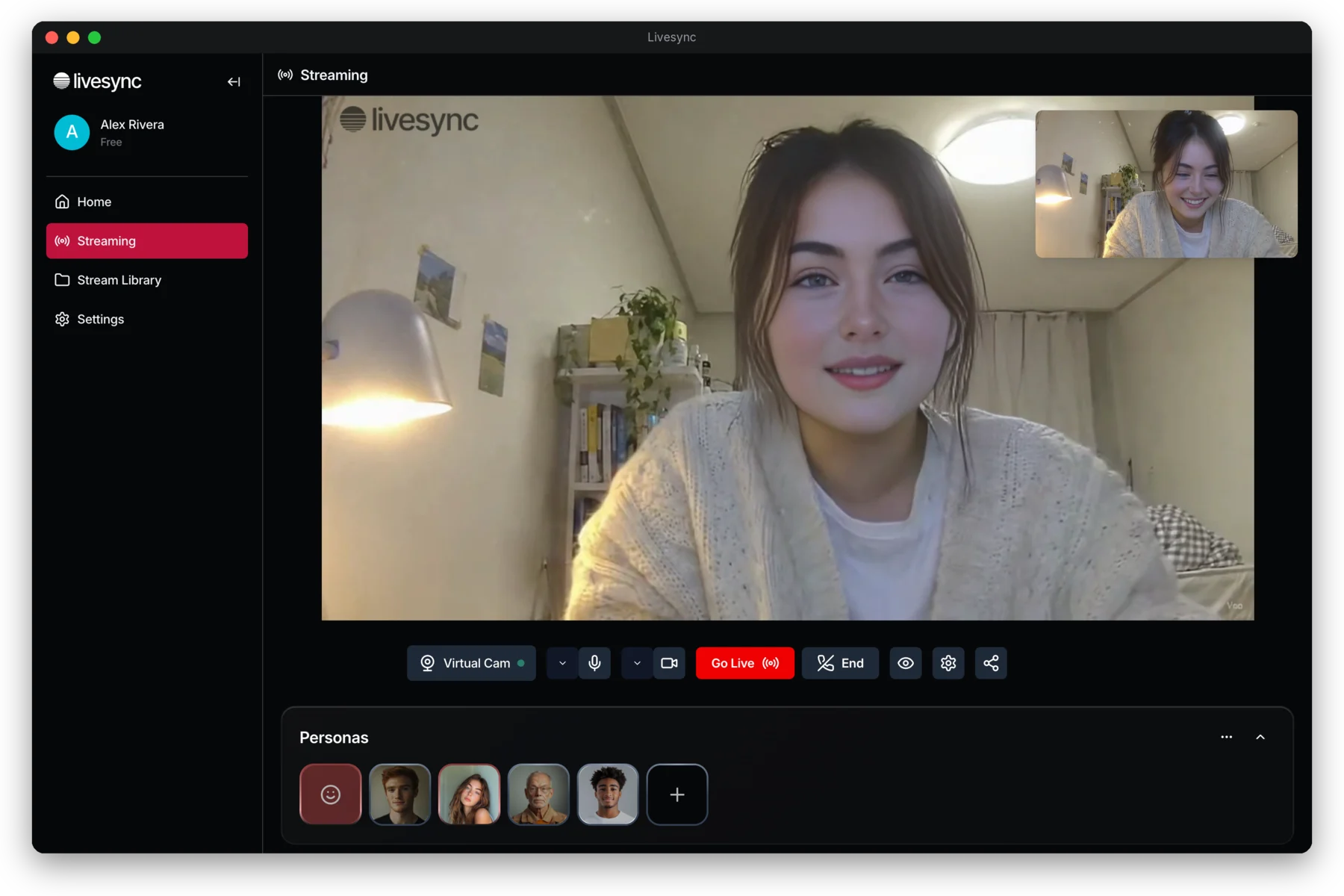
A Virtual Cam button sits next to your microphone and camera controls. Its dot turns green when your persona is live in Livesync Camera. Click it to turn the feed on or off, or for a quick reminder of how to use it.
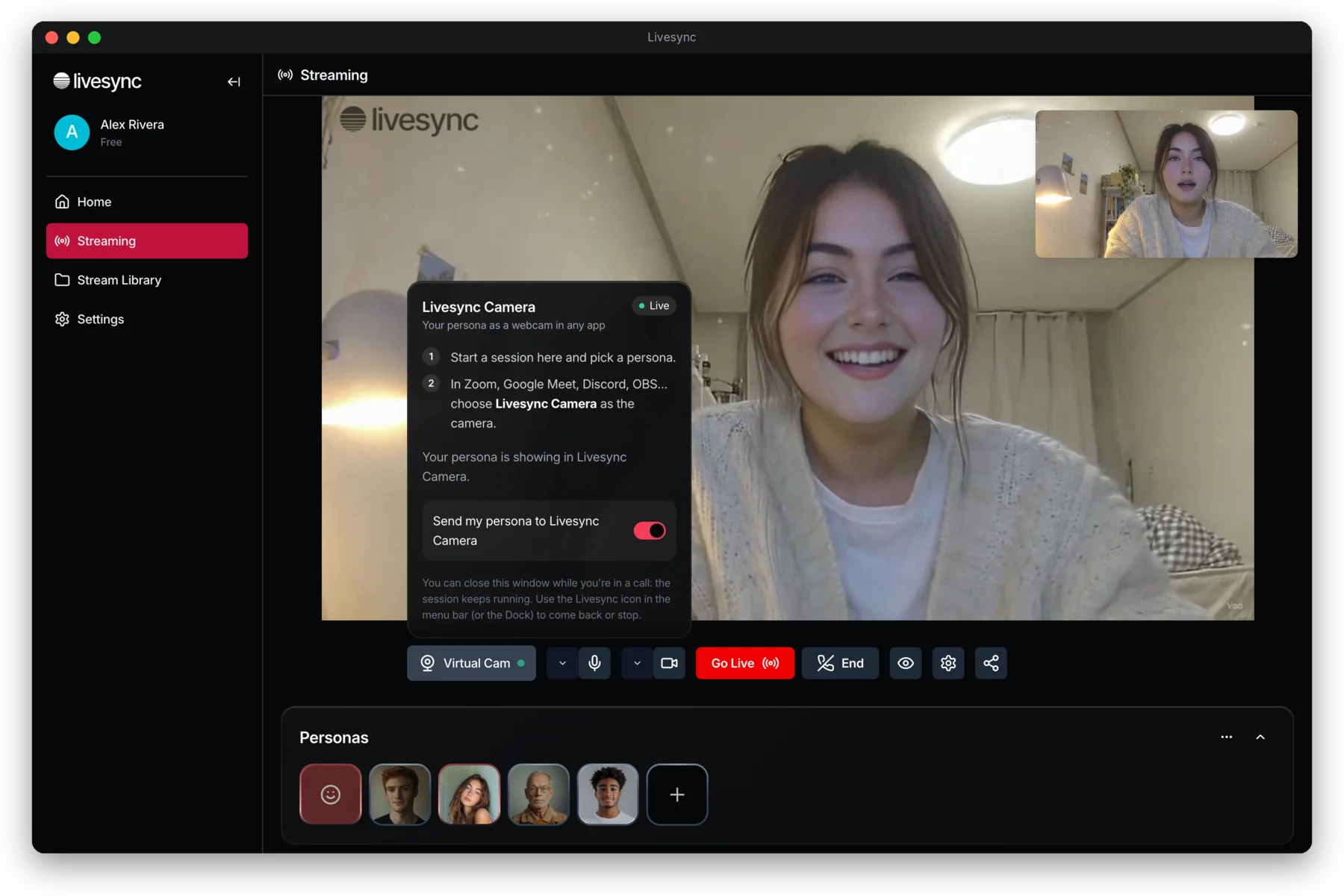
Once your call has started you can close the Livesync window. The session keeps running, and the Livesync icon in your menu bar (or system tray on Windows) lets you switch personas or stop whenever you like. When no session is running, Livesync Camera shows a simple Livesync card instead of a frozen picture.
Before you start
Livesync Desktop runs on macOS 13 or later and on Windows 10 and 11. On a Mac, macOS asks you once to allow the camera in System Settings.
Livesync Camera is video only, so your call app keeps using your own microphone. Your voice arrives a moment before your face, which is hard to notice in conversation. If you're streaming and want them perfectly in sync, our OBS guide shows how to delay the audio to match.
If an app was already open when you installed Livesync Desktop and doesn't list Livesync Camera, quit it and open it again.
Get Livesync Desktop
Version 1.0.2 for macOS 13+ and Windows 10/11 · Setup guide